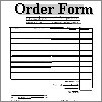
HOW TO PRINT AN ORDER FORM
There are several popular Internet browsers around, no two of which display a web page exactly the same way. (The great thing about standards in computerland is that there are so many to choose from.)
In addition, users have different printers, no two of which work exactly the same way. And one user might have his printer page margins set to 1/2", while another user has them set to 1.25".
Needless to say, all of this makes the design of a printable order form . . . challenging.
We've tried to design the form to work on a wide variety of systems and printers.
If the form doesn't fit on one page, use the "Print Preview" option under "File". There may be controls there that will let you adjust the size of the form image to fit the page.
If there are "+" and "-" buttons, press the "-" button to make the form slightly smaller. The printer "Options" dialog box may also have a reduce/enlarge control that will do the same thing.
Worst case, your system may print the order form in two pages, which doesn't matter to us.
Internet Explorer On The PC
Click on the link below to "Print an Order Form". Wait a few seconds for the order form picture to load.
Click your pointer within the content window to make that the active window.
Click the right mouse button and select Print from the menu that appears.
Or, click the Print icon on the taskbar.
Or, select Print in the File menu.
Internet Explorer on the Macintosh
If the form doesn't fit on one page, use the "Print Preview" function under "File". There may be controls there that will let you adjust the size of the form to fit the page. If there are "+" and "-" buttons, press the "-" button to make the form slightly smaller. The printer "Options" dialog box may also have a reduce/enlarge control that will work.
Click on the link below to "Print an Order Form". Wait a few seconds for the order form picture to load.
Click your pointer within the content window to make that the active window.
Select Print in the File menu.
Netscape on the PC or Macintosh
Click on the link below to "Print an Order Form". Wait a few seconds for the order form picture to load.
Click your pointer within the content window to make that the active window.
Click the Print icon on the taskbar.
Or, select Print... in the File menu.
Go to Top of Page
Go to the Order Info Menu
Go to the Main Menu